Titles, Notes, Logos, Legends and Axes
Titles, Notes and Logos are created in exactly the same way as all other objects. Just select the object to which you would like the title, note or logo to belong to and then click on the icon in the object toolbar.
Legends and axes do not need to be created as they are created automatically as part of the domain object - they just need to be enabled.
Preparation
If your plot does not look like the following figure run step4.gsl
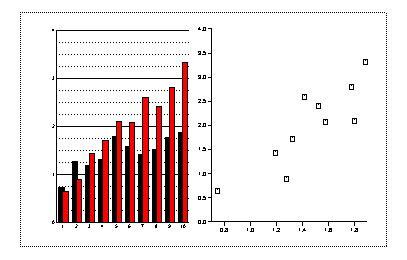
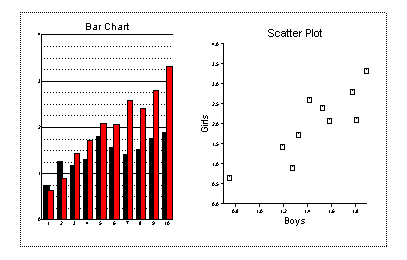
Select the viewport on the left and then click on the title icon. Set the text resource to be "Bar Chart". The default position for a title is just above the viewport, so if your viewport is too tall then the title may be off the top of the screen. If this is the case resize the viewport until the title can be seen.
Click on the [...] button next to the Font resource. In the dialog that pops up click on True Type Fonts. Select a font from the True Type Font Dialog. Click on OK. Click on OK.
In a similar way set the title for the second viewport to be "Scatter Plot"
Double click on the X axis of the scatter plot and go to the Text tag. Set the text resource to be "Boys". Set the Y axis text to be "Girls".
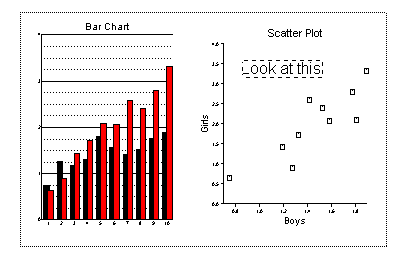
Click on one of the scatter points and then click on a Note object in the Icon toolbar. Drag out a rectangle showing the required size and position of the note. Fill in some text and then click on OK.
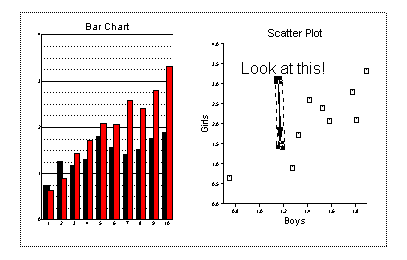
Leave the note selected and then click on the arrow. Drag out an arrow to the required position.
Now move on to Legends and Axes