Cut, Copy and Paste
The browser can be used to move or copy whole hierarchies of objects. In this step we copy what we have done before and then modify it.
First resize and move our first viewport so that it is positioned on the left hand side of the canvas.
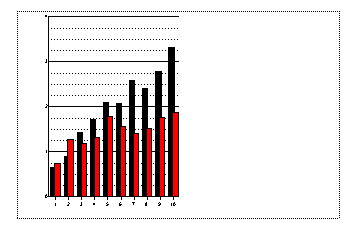
In the browser right click on the viewport and select "Copy". Right click on page_1 and select "Paste". A new viewport is created which is exactly the same as the first (it is not possible to see it in the canvas as it is exactly the same as the first including the position on the page).
Select a viewport on the left and drag it to the right.
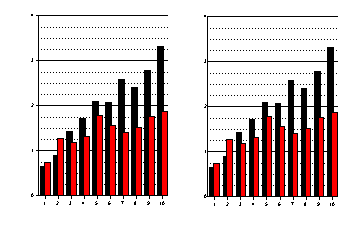
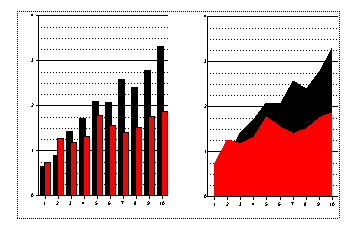
In the right hand viewport, double click on each graph in turn and change the graph type to be "Area"
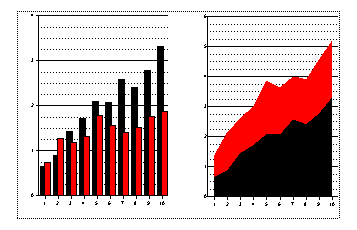
Finally edit the domain that contains our two area plots, go to the Style tag and switch on Graph Stacking
Back in the browser right click on the viewport containing the area graphs and choose Delete.
Make sure page_1 is selected and then right click on the Graph icon and select a scatter plot. The scatter plot is the first icon on the second row. This pop-up menu is a short-cut for clicking on the Graph icon with MB1 and then selecting the graph type.
In the Data tag set the X to be "Boys" and Y to be "Girls" and then click on OK. As no viewport was selected when we made the graph, Gsharp has made a viewport and domain for us. The default position for a viewport fills most of the canvas:
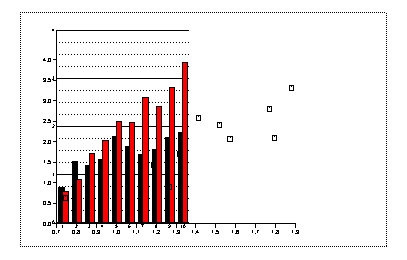
Click in the viewport containing the scatter plot and then resize it so that it is along side the first viewport.
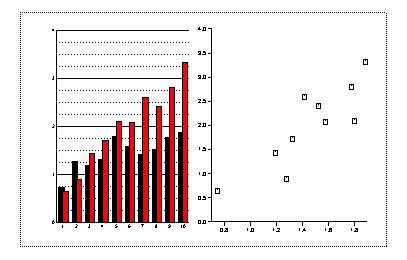
You have now learnt a number of simple chart types for plotting your data. In the next step we will look at Titles, Notes, Legends and Logos.