Positioning GUI Objects
The Bulletin object is a container which allows children to be positioned anywhere on it surface. Children of the Bulletin object are positioned using the XuNguiPosition resource which specifies, in X,Y pixel coordinates, the position of the top left corner of the child relative to the top left corner of the Bulletin. The default position is (0,0). If not explicitly set, children of a Bulletin object will be positioned on top of each other at this default location.
A bulletin can be added to the work area of the Page Format dialog by
creating a bulletin child of the dialog parent. The bulletin will be automatically
placed in the work area of the dialog. The following code fragment from
gui_lesson4.gsa uses a bulletin as the container for two toggle switch
buttons. The buttons are positioned
sidebyside by setting the XuNguiPosition resource of the second button
so that is it located 100 pixels to the right of the first button:
Example: gui_lesson4.gsa working with dialogs
create Bulletin gsharp_1.PageFormat.bb;
create Switch gsharp_1.PageFormat.bb.switch_1
  ( XuNguiLabel = "Relative",
    XuNguiCallback = "toggleCB",
    XuNguiCallbackData =
      GuiPack("gsharp_1.PageFormat.bb.switch_2")
  );
create Switch gsharp_1.PageFormat.bb.switch_2
  ( XuNguiLabel = "Absolute",
    XuNguiPosition = (100, 0),
    XuNguiCallback = "toggleCB",
    XuNguiCallbackData =
      GuiPack("gsharp_1.PageFormat.bb.switch_1")
  );
The resulting dialog is shown in the figure below.
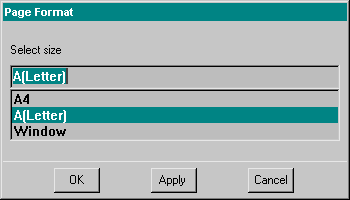
Pressing a toggle button selects the display mode of the page object, which can toggle between relative (scaled to fit the window), and absolute (a fullsize scrolled image).
All GUI manager objects automatically perform geometry management (determine
size and position) of their children. The child positioning logic of manager
objects is summarized in the table below.
| Name | Position of Children |
| Bulletin | Determined by the child object's XuNguiPosition resource. |
| Dialog | Buttons and Switches added to the Dialog button area. Other object classes added to the work area. |
| Menu | Top to bottom in order of creation. |
| Menubar | Left to right in order of creation. |
| Panel | Top to bottom in order of creation. Menubar always at the top |
| Popup | Top to bottom in order of creation. |
| Toolbar | Left to right in order of creation. |
Carry on to Getting Information About the GUI Hierarchy