Image2Volume
Synopsis
|
|
|
Provides an example application encompassing the following features and
capabilities:
|
|
|
- combine series of TIFF images to create a volume
- various visualization possibilities for volume data
- animation of isosurface parameters for presentation and analysis
|
Key AVS/Express Modules
Used
|
Loop
|
an Express-standard module that periodically increments an output value
|
|
ReadImg2Vol
|
an Express-standard module that accepts series of image files and outputs
a 3D uniform field
|
|
bounds
|
an Express-standard module that generates a bounding area of a 3D structured
field
|
|
downsize
|
an Express-standard module that resamples a field to reduce (or increase)
its size
|
|
isosurface
|
an Express-standard module that creates a surface, or 3D contour, of
constant value
|
|
Uviewer3D
|
an Express-standard module that defines all of the necessary components
for the display portion of a graphics application
|
Analogous Applications
Instructions for use
- Open the Image2Volume demo by dragging its object from the library into
the Application space.
In AVS/Express, you begin building an application by finding the objects
you need in the Libraries section of the Network Editor and then dragging
them into the application workspace. This process is called instancing.
When you instance an object, the AVS/Express Object Manager executes the
functionality associated with that object.
So in this case, where the Image2Volume object represents a complete (albeit
simple) application, instancing it causes it to execute the completed Image2Volume
application. To learn more about instancing objects, see AVS/Express
Concepts, Getting Started with AVS/Express, Section 2.2 Instance Objects
in the Network Editor.
- In the application window that opens, notice the two main components:
- The leftmost portion of the window holds a panel devoted to user interface
controls. At the top of this panel, note the drop-down menu labeled Modules,
with Summary as the currently selected menu item and the other Modules
that make up Image2Volume also listed. Choosing a Module in this menu
causes its controls to appear in the panel. For now, we'll leave Summary
chosen because it provides a top-level user interface for the overall
Image2Volume demo. It does this by presenting the most important subset
of controls for the Modules doing the real work. In that respect, this
panel is a simple example of an application-specific UI that you might
create.
- The right side, the larger area, is the DataViewer, which is where AVS/Express
displays data and the end-user interacts with it. There is a series of
buttons along the top of the DataViewer, providing various data-interaction
functions. You can see each button's function by hovering the mouse over
it. The functionality offered by these buttons is built into AVS/Express;
you don't have to create these data-interaction controls yourself in any
AVS/Express application you develop.
- Back in the Summary panel, click the Animate checkbox so that it is checked.
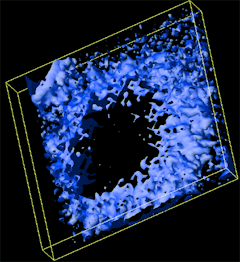
The DataViewer display begins cycling through an animation of Isosurface level
values.
- Stop the animation cycle by again clicking Animate so that it is unchecked.
Interacting with Data in the Data Viewer
This section introduces you to direct interaction with the data in the DataViewer.
Ttry out the Transform and Reset buttons, which are not specific to
this demo; they can be included in any DataViewer you create for your own visualization
applications. Activate each control by clicking its button; see its name and
description by hovering the mouse button over it.
| These buttons are found along the top of the DataViewer
portion of the application window. |
|
| The first four buttons provide the standard scene-manipulation
controls: rotate, scale, translate in X/Y and translate in Z. Activate
a control by clicking it and then dragging in the viewer area. |
|
| The next four buttons provide various reset functions that
restore the defaults for various application states. |
|
Controls in the Individual Module Editors
The following section briefly covers the controls in the various editors for
individual modules within the Image2Volume demo.
- Back in the left portion of the application window, find the Modules drop-down
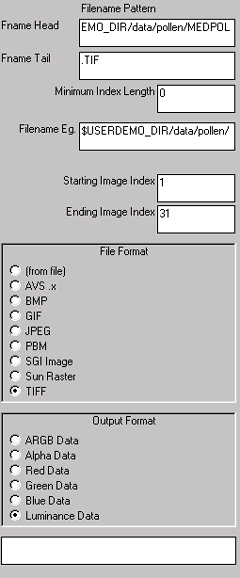
menu at the top of the panel and choose Modules -> Read_Img2Vol. The Read_Img2Vol
Module Editor appears.
|
Read_Img2Vol reads in a series of image file slices, builds these slices
into a 3D volume and outputs the data as a 3D uniform field.
The module's Editor provides controls for specifying the base filename
(e.g. MyImageFile) and tail (e.g. .TIF) and expects an index number
as the unique component of each filename (e.g. MyImageFile2.TIF). The
start and end index numbers are specified in the last two text-input
fields.
The File Format and Output Format provide a choice of standard formats.
|
|
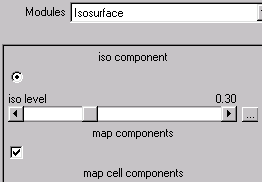
- Now choose Modules -> Isosurface. The Isosurface Module Editor
appears.
|
The isosurface module creates a surface of constant value, or a 3D
contour.
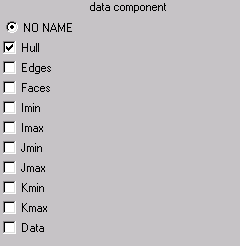
The Isosurface Editor controls specify which data component to use
for the isosurface, the value represented by the resulting surface,
and whether to map cell components onto the resulting surface.
|
|
|
Click the map components checkbox to uncheck it; the surface turns
white because cell data is not being mapped to it. Recheck the map cell
components checkbox. The iso slider determines the value to display
for the chosen iso component: the resulting isosurface indicates the
presence of that value. The map components checkbox determines whether
the (in this case lone) cell data will be mapped to the isosurface as
color ranges representing value ranges.
|
- Choose Modules -> downsize. The downsize Module Editor appears.
|
The downsize module resamples a field to either reduce or increase
its size. You can see its effects easily in the Image2Volume demo.
|
|
|
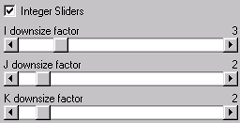
The Integer Sliders checkbox specifies whether the downsize factor
sliders are constrained to output integer values.
Move each slider and observe the results.
Before leaving this editor, set the sliders back to
their original values of 4, 4, 4.
|
| |
- Choose Modules -> Bounds. The Bounds Module Editor appears.
|
Bounds draws the bounding box around the data field we're viewing.
Turn on and off the various options and observe the results.
|
|
To exit the Image2Volume application
If you wish to continue, skip to the next section and come back to these instructions
when you are finished working.
- Exit the Image2Volume application from the application itself by choosing File
-> Exit.
- Exit AVS/Express by choosing File -> Exit from the AVS/Express Network
Editor window.
Discussion of Key Modules
For this section, please switch to the Network Editor Window. The Network
Editor looks like this:
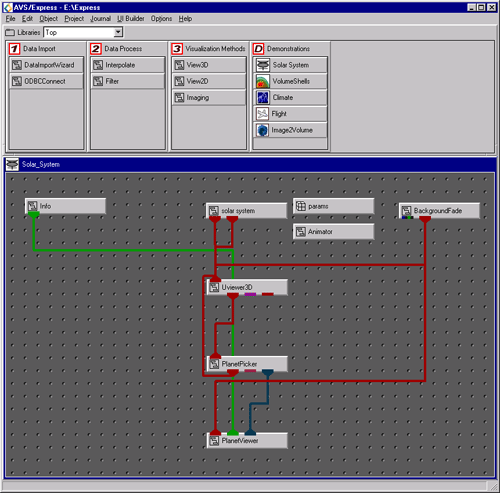
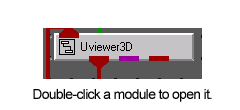
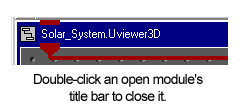
You can view the sub-components of any module by double-clicking directly
on it; close any opened module by double-clicking its title bar. You can see
man-page style help on any module by right-clicking it and choosing Help from the resulting contextual menu.
Loop
Loop's purpose generally is to continually
output an incrementing value. In the Network Editor view of Image2Volume, it
is not visibly connected to any other modules but it applies to the cyclic "animation"
of the surface, which is generated by continually incrementing the isosurface
level value.
ReadImg2Vol
This is the source of the fundamental
information in this demo -- the series of image files to be converted to a volume.
As described above, ReadImg2Vol accepts a series of image files for which the
base filename, file format, and start and end indices are defined by you or
the end user; it converts that file series into a volume. In Image2Volume, ReadImg2Vol
passes its output to both Bounds and Downsize for further processing.
bounds
Bounds uses the information it receives
from ReadImg2Vol about the resulting volume to construct a properly sized bounding
box, with components displayed according to your specifications and/or user
interaction at runtime. It passes the resulting box to Uviewer3D for viewing.
downsize
Downsize uses user-input parameters
to either enlarge or reduce the volume file by resampling it upward or downward,
and passes the result to Isosurface.
Isosurface
Isosurface takes the output of ReadImg2Vol
(by way of downsize) and sends it to UIViewer3D for display as an isosurface.
Discussion
of Analogous Applications
Medical Visualization
For education, research and analysis
in medicine, volume visualization is a well-established tool. AVS/Express has
the built-in ability to combine a series of 2D images such as scans into a volume,
and to introduce an orthoslice for moving dynamically through the scanned images
while still viewing the volume. Further, AVS/Express allows integration of multiple
data types from different sources so that sophisticated correlations can be
derived from a relatively simple custom application. Incorporation of particle
animation, for example to depict the flow of blood or oxygen, is just one of
many possible extensions.
Geosciences Visualization
Seismic volumes constructed from
slices provide an advantage particularly when augmented with color-mapping of
value ranges: concentrations of a particular value/color stand out clearly and
can be examined more closely using orthoslices that intersect at the area of
concentration. Similarly, isosurfaces can be imposed in the same visualization
to isolate value ranges for display as surfaces.
Weather Data Visualization
AVS/Express' ability to incorporate
multiple disparate data types makes it an ideal tool for building weather data
visualizations. Terrain information can combine with wind vector, humidity and
temperature data to create a compelling and informative representation of a
regional weather system for analysis and education.
File
UserDemos/v/Image2Volume.v
See also