Flight
Synopsis
|
|
|
Provides an example application encompassing the following features and
capabilities:
|
|
|
- real-time camera transformation
- multiple alternative representations of identical data for cross-reference
- innovative data interaction methods; e.g. capture of mouse gestures
and conversion for fly-through interpolation
- texture mapping
|
Key AVS/Express Modules Used
|
Loop
|
an Express-standard module that periodically increments an output value
|
|
Read_Field
|
an Express-standard module that reads in a field (.fld) file and converts
it to a structure usable within Express
|
|
downsize
|
an Express-standard module that resamples a field to reduce (or increase)
its size
|
|
Uviewer3D
|
an Express-standard module that defines all of the necessary components
for the display portion of a graphics application
|
|
SurfaceCreator
|
a combination of Express-standard modules including surf_plot, texture_mesh,
and ReadImage; to generate the surface used in the large DataViewer window
|
|
FlightPathEditor
|
a combination of Express-standard modules including ContinuousSketch,
interp_data, surf_plot, extract_mesh, and IScene 2D; to convert user mouse
gestures to camera transform information
|
Analogous Applications
Instructions for use
- Open the Flight demo by dragging its object from the library into the Application
space.
In AVS/Express, you begin building an application by finding the objects
you need in the Libraries section of the Network Editor and then dragging
them into the application workspace. This process is called instancing.
When you instance an object, the AVS/Express Object Manager executes the
functionality associated with that object.
So in this case, where the Flight object represents a complete (albeit
simple) application, instancing it causes it to execute the completed Flight
application. To learn more about instancing objects, see AVS/Express
Concepts, Getting Started with AVS/Express, Section 2.2 Instance Objects
in the Network Editor.
- In the application window that opens, notice the two main components:
- The leftmost portion of the window holds a panel devoted to user interface
controls. At the top of this panel, note the drop-down menu labeled Modules,
with Summary as the currently selected menu item and the other Modules
that make up Flight also listed. Choosing a Module in this menu causes
its controls to appear in the panel. For now, we'll leave Summary chosen
because it provides a top-level user interface for the overall Flight
demo. It does this by presenting the most important subset of controls
for the Modules doing the real work. In that respect, this panel is a
simple example of an application-specific UI that you might create.
- The right side, the larger area, is the DataViewer, which is where AVS/Express
displays data and the end-user interacts with it. There is a series of
buttons along the top of the DataViewer, providing various data-interaction
functions. You can see each button's function by hovering the mouse over
it. These buttons can be included in any DataViewer; implicit and important
to note is that you don't have to create these data-interaction controls
yourself, in any AVS/Express application you develop.
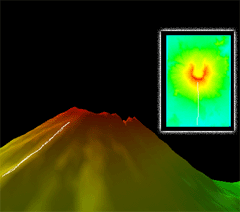
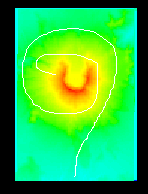
- Back in the Summary panel, note that the 2D image in the Summary panel represents
the same area depicted as a 3D surface in the DataViewer.
| With this in mind, use the right mouse button to
draw a flight path directly on the 2D image in the Summary panel. |
|
| You should end up with a white line along the path you
drew: |
- Click Run Flight. The DataViewer window displays a fly-through animation
based on the path you drew in the Summary panel.
- Adjust the Frames slider upward for slower motion, downward for faster.
- Stop the animation by clicking Run Flight again to uncheck it.
- Click the Use Texture Map checkbox a few times and observe the results.
Interacting with Data in the Data Viewer
The following section introduces you to direct interaction with the data in
the DataViewer.
Take a moment now to try out the Transform and Reset buttons, which are not
specific to this demo; they can be included in any DataViewer you create for
your own visualization applications. Activate each control by clicking its button;
see its name and description by hovering the mouse button over it.
| These buttons are found along the top of the DataViewer
portion of the application window. |
|
| The first four buttons provide the standard scene-manipulation
controls: rotate, scale, translate in X/Y and translate in Z. Activate
a control by clicking it and then dragging in the viewer area. |
|
| The next four buttons provide reset functions that restore
the defaults for various application states. |
|
Controls in the Individual Module Editors
The following section briefly covers the controls in the various editors for
individual modules within the Flight demo.
- Back in the left portion of the application window, find the Modules drop-down
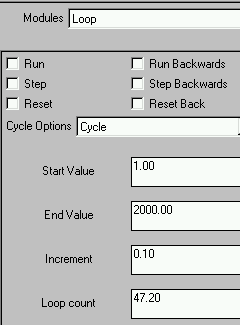
menu at the top of the panel and choose Modules -> Loop. The Loop Module
Editor appears.
| The top controls provide forward and backward movement through
the simulation of planetary movement. |
Bounce will cause the simulation to move infinitely
between the Start and End Values, by the specified Increment, starting
in the last-specified direction (forward or backward) and then reversing
at either end.
|
|
The Cycle Options menu controls how the simulation Run and Step controls
will behave relative to the Start, End, Increment and Loop count values
below:
Cycle will cause the simulation to move infinitely in modulo
or clock-face fashion between the Start and End Values, by the specified
Increment, in the last-specified direction (forward or backward).
Once will cause the simulation to run one time only between
the Start and End Values, by the specified Increment, in the last-specified
direction (forward or backward).
|
Try changing the various values and observing their effects In the numeric
fields, be sure to press Enter to commit your edit.
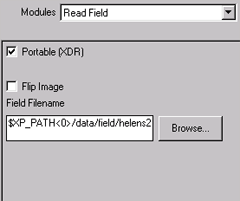
- Now choose Modules -> Read_Field. The Read_Field Module Editor
appears.
|
Read_Field specifies the surface image file used in both the Summary
panel display and the DataViewer display.
The first checkbox is used to indicate whether the input file is in
XDR format and has an additional parameter when unchecked.
|
You can also type a pathname directly into the Field
Filename box. Replace the "2" in the filename with a "1,"
then press Enter to commit your changes and observe the results.
|
|
Flip image vertically inverts the image before output.
The Browse... button produces a standard Open dialog box for choosing
a new file for read-in.
|
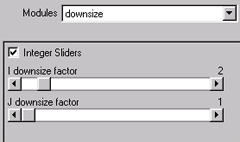
- Choose Modules -> downsize. The downsize Module Editor appears.
|
The downsize module resamples a field to either reduce or increase
its size. You can see its effects easily in the Flight demo.
|
|
|
The Integer Sliders checkbox specifies whether the I and J downsize
factor sliders are constrained to output integer values.
|
Try adjusting each slider and observe the results. Move
both sliders to the extreme right, then switch back to the Summary to
see the effects there.
|
| Before leaving this editor, set the sliders
back to their original values of 4 and 4.z |
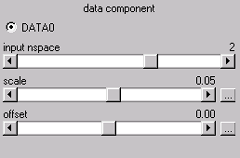
- Choose Modules -> surf_plot. The surf_plot Module Editor appears.
|
surf_plot extrudes a 2D or 1D mesh into 2D or 3D. In Flight, surf_plot's
controls have extreme effects on the height and vertical offset of the
resulting surface, respectively.
Try clicking the increase/decrease buttons of each slider to make gradual
adjustments.
|
|
| Before leaving this editor, set the sliders
back to their original values of 0.05 and 0.00. If you have trouble reaching
those values with the sliders, click a slider's "..." button
and enter the desired value directly; press Enter to commit your edit. |
- Switch briefly to Modules -> Read_Texture (actually a custom
module consisting primarily of Read_Image) and note the resulting panel. It
is similar to Read_Field in that it allows specification of a file for input
- specifically, the texture used in the DataViewer representation of the scene
- but differs by offering parameters specific to image files. Note the radio
button labeled "from file," which derives file type from the specified
file itself; this choice is useful for allowing various file types, whereas
the remaining choices provide filtering by file type.
To exit the Flight application
If you wish to continue, skip to the next section and come back to these instructions
when you are finished working.
- Exit the Flight application from the application itself by choosing File
-> Exit.
- Exit AVS/Express by choosing File -> Exit from the AVS/Express Network
Editor window.
Discussion of Key Modules
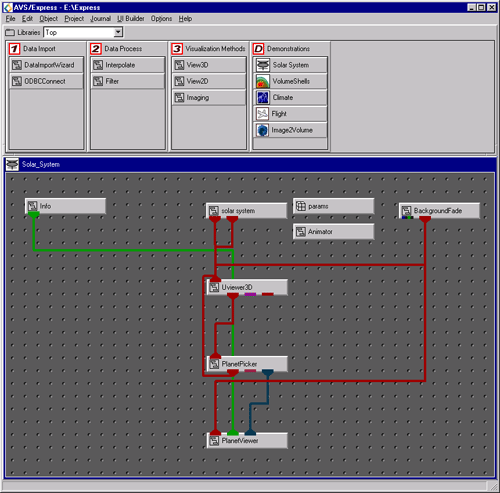
For this section, please switch to the Network Editor Window. The Network
Editor looks like this:
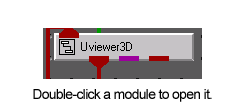
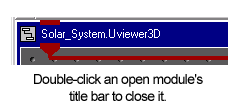
You can view the sub-components of any module by double-clicking directly
on it; close any opened module by double-clicking its title bar. You can see
man-page style help on any module by right-clicking it and choosing Help from the resulting contextual menu.
Loop
Generally speaking, loop increments and
outputs a value at a regular interval. In Flight, Loop is used to run the fly-through
animation. Although it is not visibly connected to anything in the Network Editor,
Loop shares information with the Info module, which represents the Summary UI
panel we've been using to run the demo.
Read_Field
Read_Field, as mentioned above, brings
in a field (*.fld) file and converts it to a format usable within Express. In
Flight, the field file brought in by Read_Field is used in both the DataViewer
and the Summary Panel displays. As shown clearly in the Network Editor, however,
Read_Field first passes the field file information to the downsize module, covered
in the next paragraph.
downsize
Downsize takes the field file information
passed to it by Read_Field and either increases or decreases its size according
to the values specified in its UI. Downsize passes the resulting field on to
both FlightPathEditor and SurfaceCreator for use in the Summary and DataViewer
panels.
SurfaceCreator
SurfaceCreator gets the resampled
field file from downsize. It uses surf_plot
to turn the resampled field file into a mesh with heights corresponding to the
node data from that file; it then sends this mesh on to texture_mesh.
texture_mesh
applies the mesh data to the image supplied by Read_Texture and maps that image
to the described surface. Finally, SurfaceCreator sends the resulting texture-mapped
surface to Uviewer3D for presentation.
FlightPathEditor
FlightPathEditor gets the same resampled
field file from downsize as SurfaceCreator does. But inside FlightPathEditor,
interp_data
imposes the user's mouse path (captured by ContinuousSketch)
on the field file to present the mousepath in IScene2D.
Uviewer3D
Uviewer3D defines all of the necessary
components for the display portion of a graphics application: a default graphics
window like the one in which you are viewing a 3D representation of the Flight
system, and a collection of user interface editors that you can use to control
the display of these objects. Uviewer3D is fed information about the items it
needs to render from FlightPathEditor and SurfaceCreator; and it presents the
resulting scene in the DataViewer window.
Discussion
of Analogous Applications
Military Exercise and Simulation
Design
Given information about an exercise site,
an application very similar to this one could be used to plan paths within military
exercises and to see a cockpit view of the resulting flight or ground path.
Edutainment Kiosk Interface
Using many of the same features demonstrated
in this application, a custom information kiosk system could present visitors
with a choice among possible tours as well as previews of each tour with approximate
walking times and points of interest included in the display.
Architectural Design and Presentation
An obvious application of the camera-control
interface demonstrated here is to sketch several possible walk-throughs of a
building or neighborhood design for presentation.
File
UserDemos/v/Flight.v
See also